
Integrate OpsGenie with Round Robin
ProThis feature needs a Pro plan. On Free the settings are visible but locked.
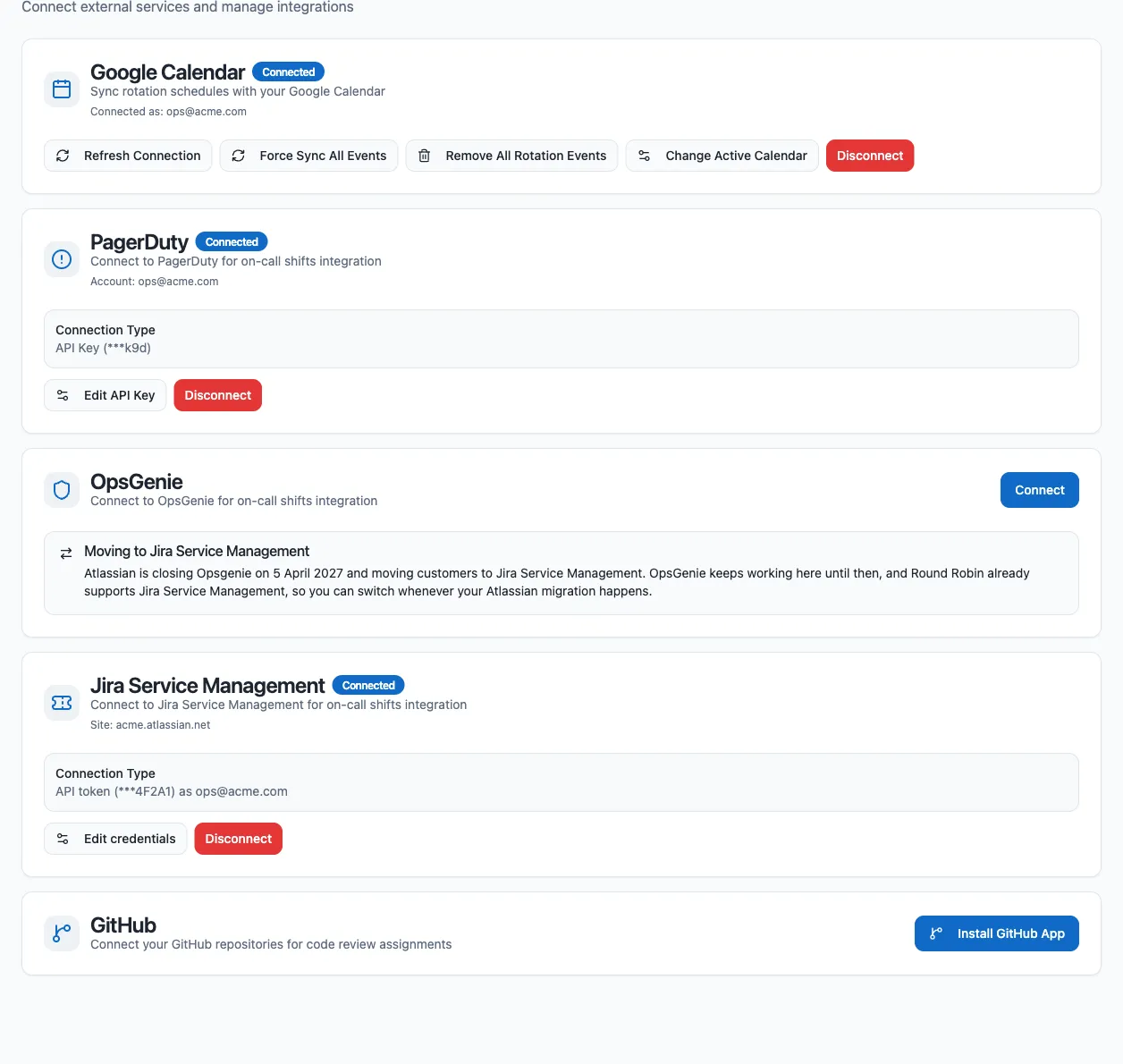
Connecting OpsGenie lets Round Robin read your OpsGenie schedules, so you can create rotations whose members and on-duty user come straight from OpsGenie. You set up and manage the connection on the Round Robin dashboard, under Settings > Integrations. The connection uses an OpsGenie API key (there is no OAuth flow).
Before you start: create an API key in OpsGenie
Section titled “Before you start: create an API key in OpsGenie”-
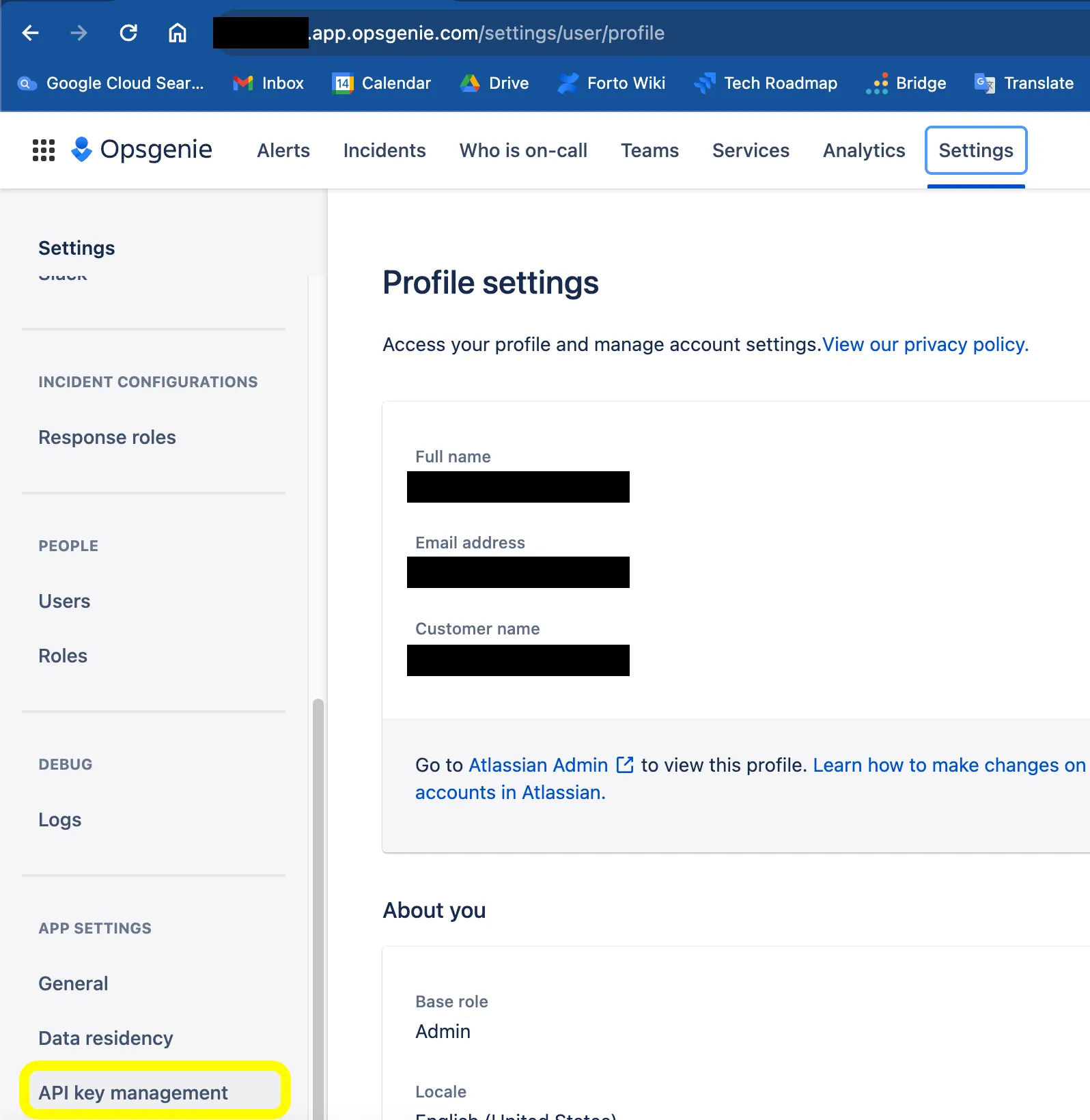
Open OpsGenie and go to Settings > API key management.
-
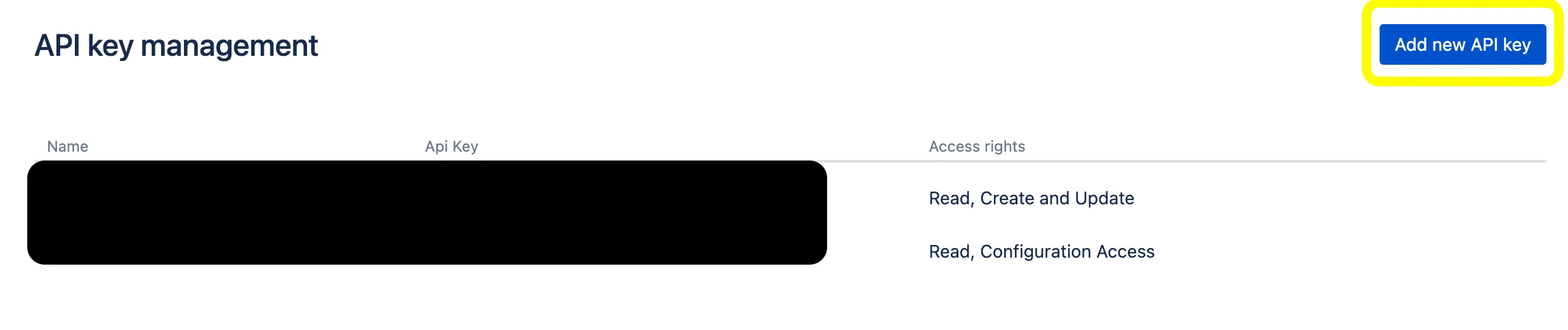
Click Add new API key.
-
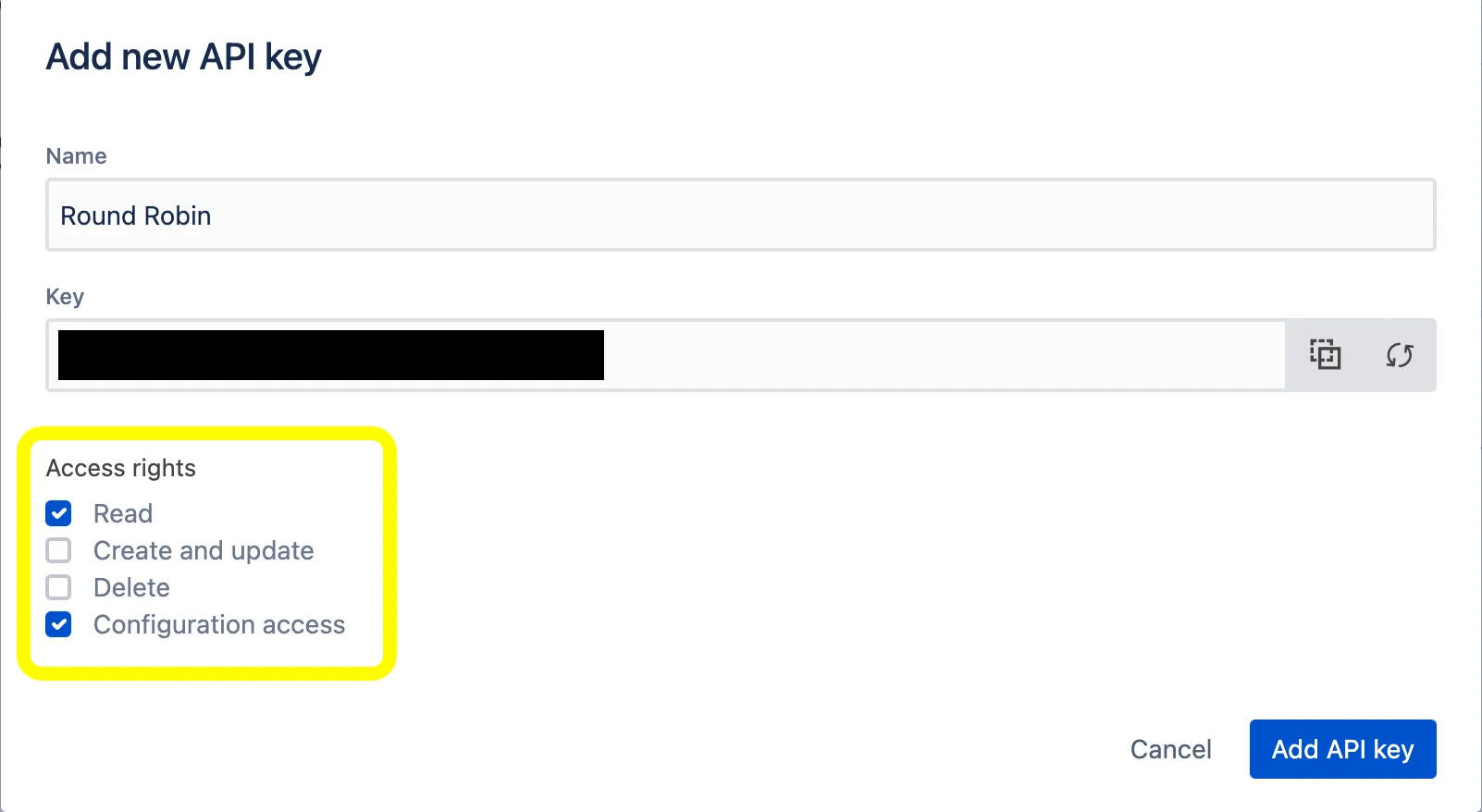
Grant the key the Read and Configuration access rights, then save it.
-
Copy the API key. You will paste it into Round Robin in the next section.
Connect Round Robin to OpsGenie
Section titled “Connect Round Robin to OpsGenie”- Open the Round Robin dashboard and go to Settings > Integrations.
- On the OpsGenie card, click Connect.
- In the Connect to OpsGenie dialog, paste your API key. If your OpsGenie account is hosted on the EU instance, check European Data Residency (EU instance): Round Robin will call
api.eu.opsgenie.cominstead ofapi.opsgenie.com. - Click Connect with API Key.
Once connected, the OpsGenie card shows a Connected badge and the last digits of the stored API key. From here you can also Edit API Key to rotate the key without disconnecting.
With the connection in place, you can bind rotations to OpsGenie schedules. See PagerDuty, OpsGenie and Jira Service Management based rotations.
Disconnect OpsGenie
Section titled “Disconnect OpsGenie”- Go to Settings > Integrations in the Round Robin dashboard.
- On the OpsGenie card, click Disconnect and confirm.
Next steps
Section titled “Next steps”- PagerDuty, OpsGenie and Jira Service Management based rotations: link a rotation to a schedule now that OpsGenie is connected.
- External rotations: how the sync behaves, and what it takes over.