Rotation mentions
Works on the Free plan. Options marked Pro below need a Pro plan.
Mentions let anyone in your Slack workspace ask the on-duty users of a rotation for help, without knowing who is on duty. A user mentions the bot with a rotation code in a channel, and Round Robin notifies the people currently on duty, tracks whether someone acknowledges, and reports back to the requester.
Mentions are especially useful when Round Robin cannot manage a Slack user group for you (see the on-duty user group feature), for example because workspace policy restricts user-group changes.
Set up a rotation code
Section titled “Set up a rotation code”A mention targets a rotation by its code, so the rotation needs one first. In the dashboard at app.roundrobinbot.eu:
- Open the rotation, click Settings, and stay on Rotation details.
- On the Details tab, fill in the Code field. Keep it short and memorable; letters, numbers, and hyphens are allowed, but not spaces. It is stored uppercase, and matching is case-insensitive.
- Save the rotation.
Configure mention behavior
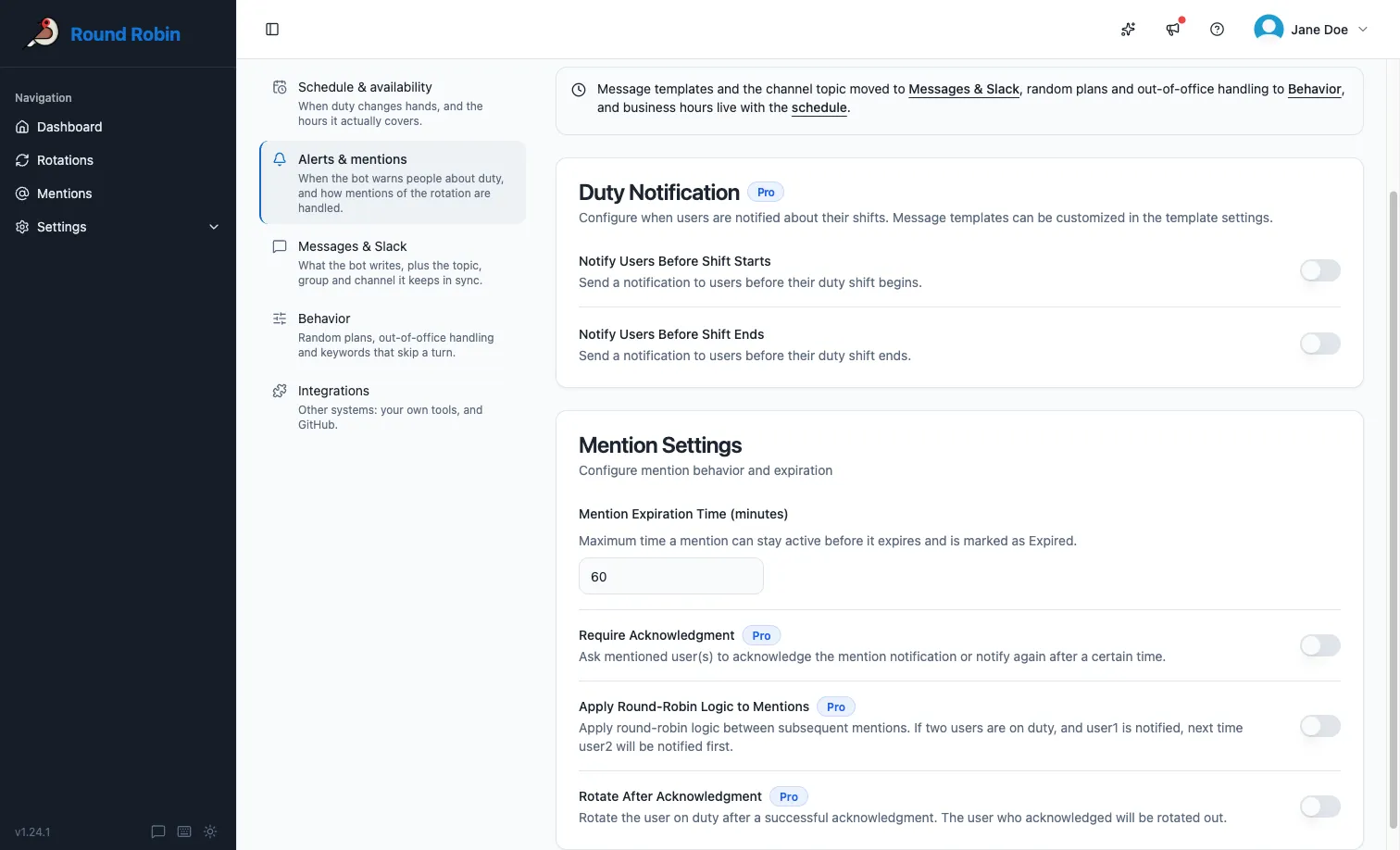
Section titled “Configure mention behavior”Mention behavior is configured per rotation, under Settings → Alerts & mentions in the dashboard. The basic flow (mention, notify, acknowledge) works on every plan; the options below tune it.
| Option | Plan | What it does |
|---|---|---|
| Mention expiration time | Pro to change it (default 60 minutes) | Maximum time a mention stays open. If nobody acknowledges before it elapses, the mention expires and closes automatically. |
| Require acknowledgment | Pro | By default a mention is one-shot: on-duty users are notified once, and the mention waits until expiration. With this option on, Round Robin notifies again after the number of minutes you set (Notify again after, default 10) if nobody has acknowledged. |
| Apply round-robin logic to mentions | Pro | Instead of notifying every on-duty user at once, notify one at a time, rotating who goes first across mentions. |
| Rotate after acknowledgment | Pro | When an on-duty user acknowledges a mention, rotate them out of duty. |
Create a mention
Section titled “Create a mention”Mentions themselves happen in Slack, where the conversation is:
- Go to a channel where the Round Robin bot is a member.
- Type
@Round Robin <code>, for example@Round Robin multi. You can add a free-text message after the code; it is forwarded to the on-duty users. - Round Robin confirms your request with a message visible only to you, including how long the mention stays open.
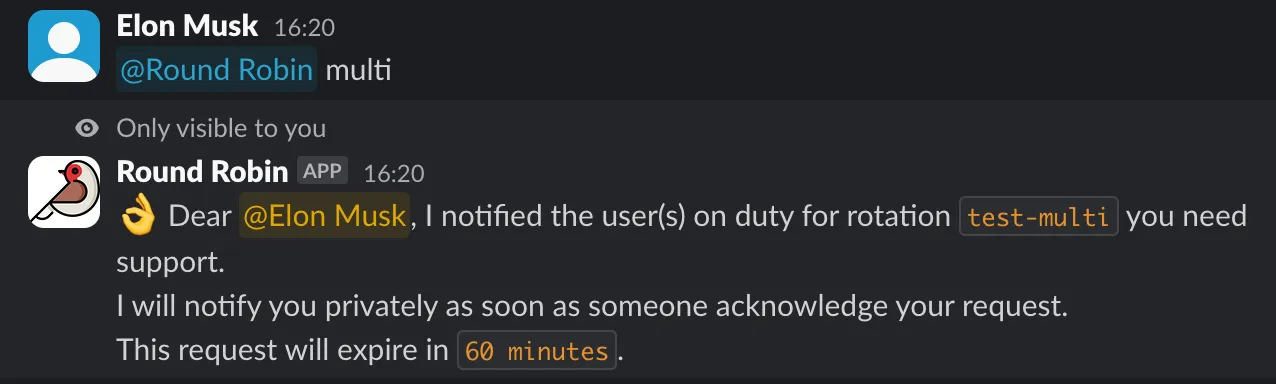
If the code does not match any rotation, Round Robin tells you so. Each person can have only one open mention per rotation at a time; if you mention the same rotation again while yours is still open, Round Robin reminds you the request is already pending.
What happens next
Section titled “What happens next”Each notified on-duty user receives a direct message with Ack and Pass buttons.
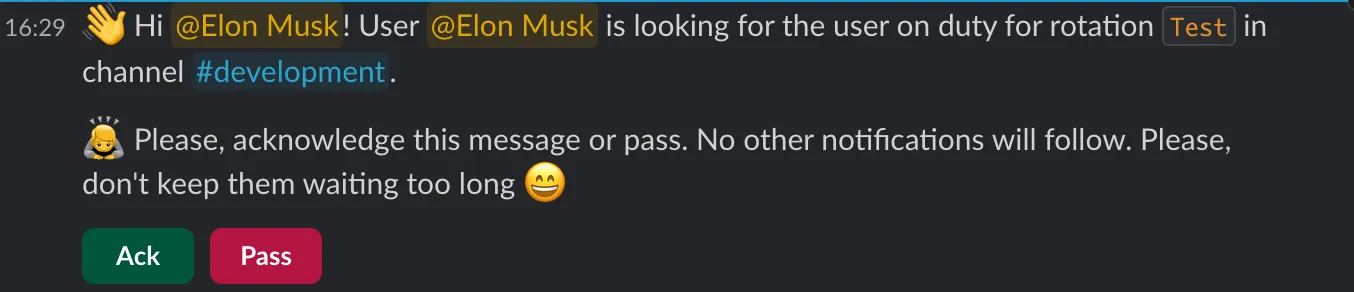
- Ack: the requester is told who acknowledged, and contact is established. The mention closes.
- Pass: the user declines. If other on-duty users were also notified, the mention stays open for them; if nobody notified is left, Round Robin either notifies again (depending on the rotation’s mention options) or closes the mention and informs the requester that nobody could answer.

If nobody is on duty when the mention is created, the requester is informed immediately and the mention closes.
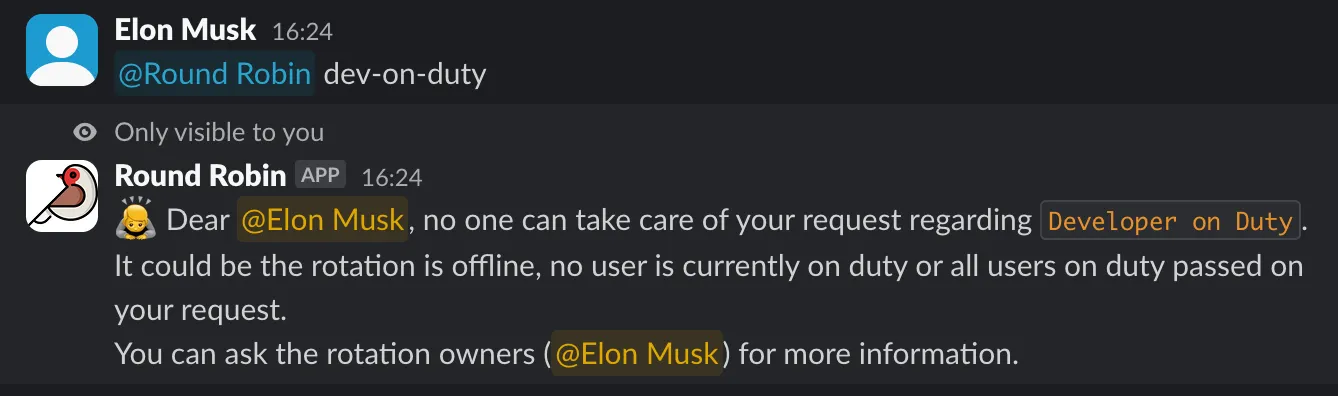
With Require acknowledgment on, on-duty users who have not responded are reminded after the configured minutes.

Track mentions in the dashboard
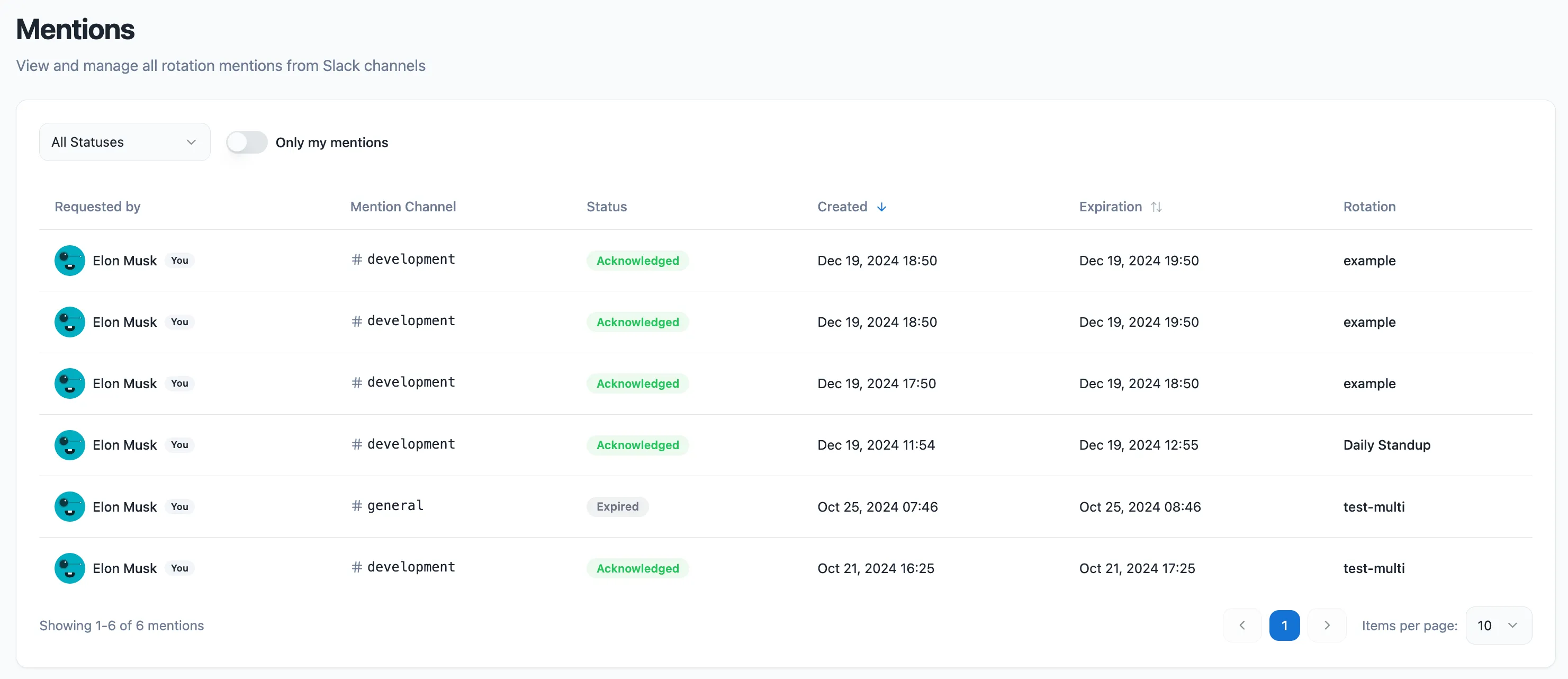
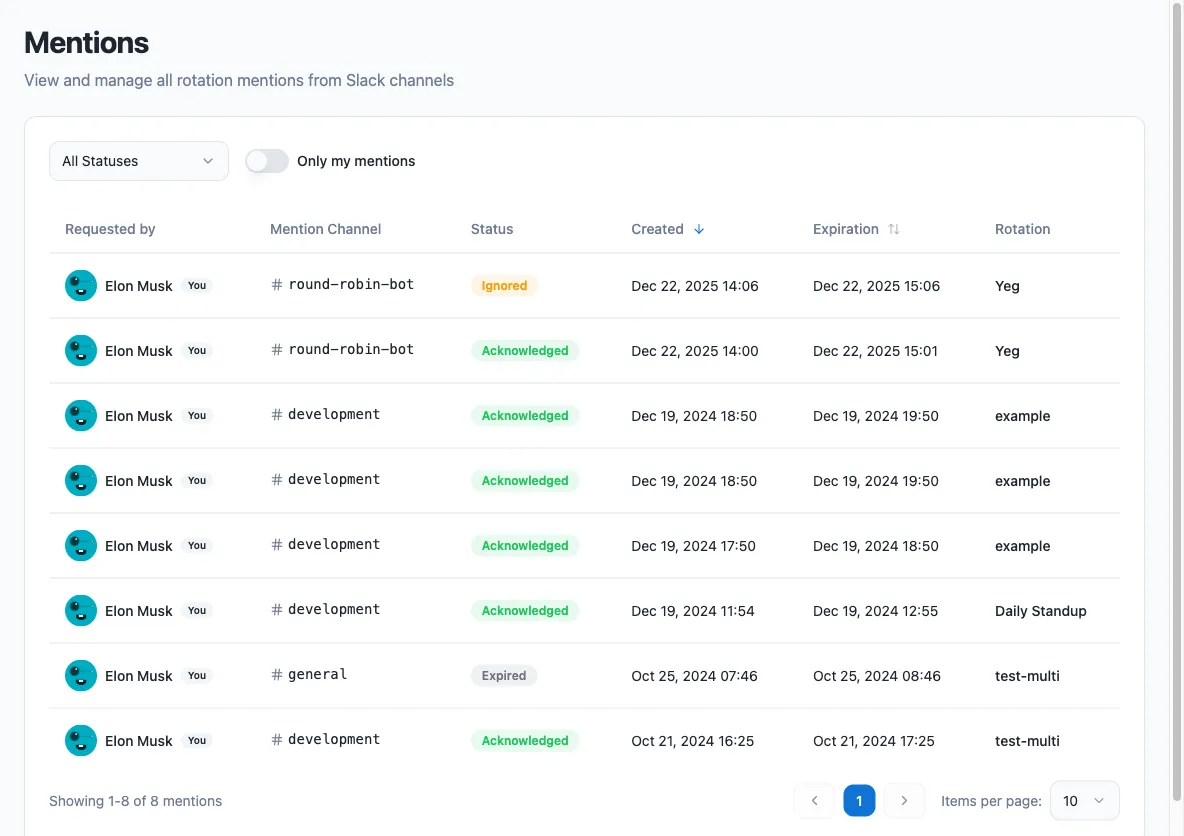
Section titled “Track mentions in the dashboard”The dashboard’s Mentions page lists all mentions and their status (open, acknowledged, ignored, expired), so you can review activity across your rotations.
How round-robin mentions work
Section titled “How round-robin mentions work”Suppose a rotation has three users on duty: Robert, John, and Jack.
- A mention is created and only Robert is notified.
- When the next mention is created, John is notified first, then Jack on the one after, and so on.
On its own, this option only changes who gets notified: if the notified user passes, the mention closes and the requester is told nobody could answer. Combine it with Require acknowledgment to walk through the on-duty users within a single mention: if Robert passes, or neither acknowledges nor passes within the configured minutes, John is notified next instead of Robert being reminded.
Next steps
Section titled “Next steps”- Use an on-duty group: a stable
@handleinstead of a mention, when your workspace allows it. - Round Robin in Slack: the whole Slack surface, including
/rr <code>. - Plans and billing: what the Pro mention options cost.