Use an on-duty group
An on-duty group is a Slack user group that Round Robin keeps in step with your rotation: whenever duty changes, the group’s members become the people now on duty. Anyone can mention a stable handle (for example @support-operator) without knowing who is on call, and messages and topics can name it with the %DUTYHANDLE% token (see Templating).
You need: a Slack plan where user groups are available, and Slack permissions that let Round Robin work with user groups. A rotation works without an on-duty group, so this is optional.
What each permission gives you
Section titled “What each permission gives you”Slack controls user groups with two separate permissions, and what Round Robin can do depends on which ones it has.
| Round Robin has | What you can do | What the card shows |
|---|---|---|
| “Create and disable” and “modify” | Round Robin creates the group and keeps it in sync. | Both options. |
| “Modify” only | Someone else creates the group in Slack, then you connect it as an existing group. | The existing-group option, and a note that creating is unavailable. |
| Neither | The on-duty group cannot be used. | A note saying so, and the switch cannot be turned on. |
“Modify” matters most: without it Round Robin cannot update the group’s members. If your workspace allows only one of the two, ask for that one.
Setting the permissions
Section titled “Setting the permissions”A workspace admin opens Workspace Settings & Permissions and sets the user group permissions to Everyone, except guests.
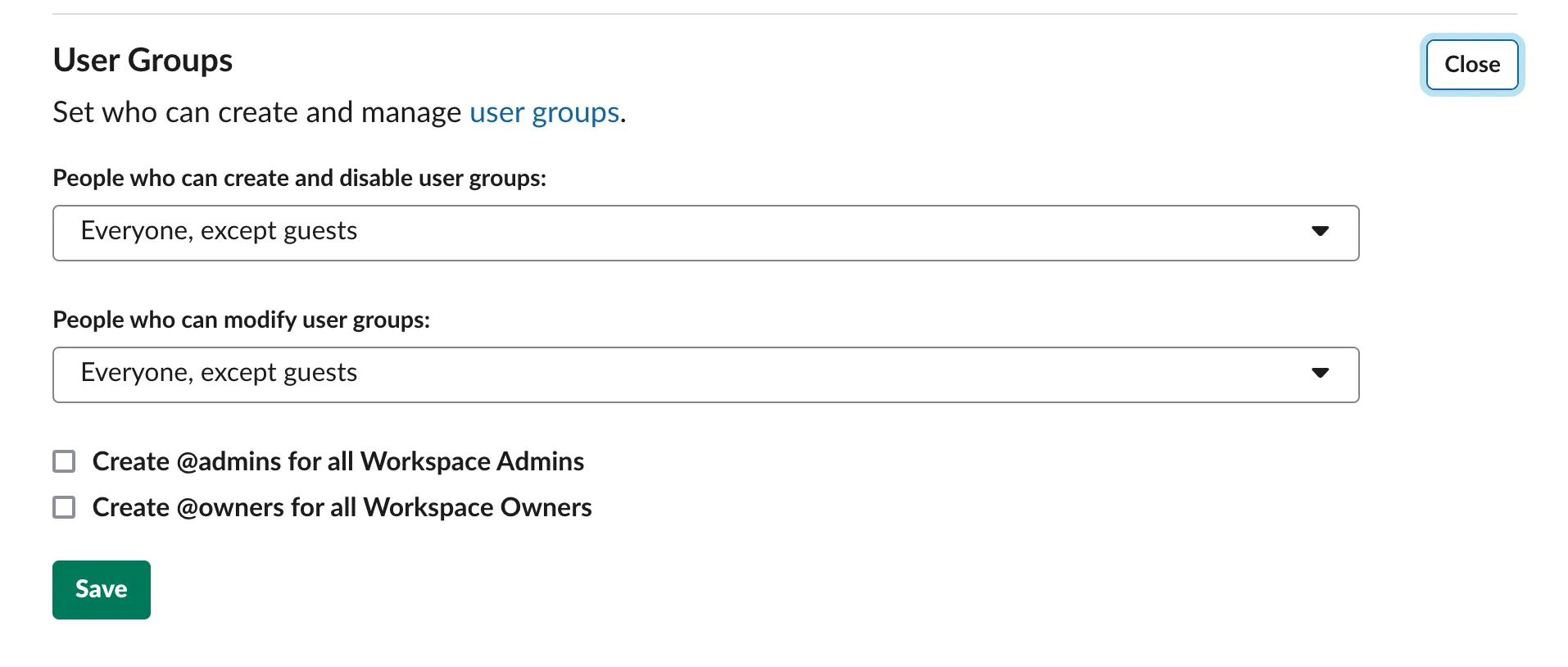
On Enterprise Grid, these permissions are set for the whole organization rather than per workspace, so an org owner or org admin changes them in the organization’s settings. Round Robin does not need to be installed org-wide: a workspace-level install can manage user groups once the organization allows it.
If you cannot change these settings yourself, ask an administrator.
Connect a group from the dashboard
Section titled “Connect a group from the dashboard”- Sign in at app.roundrobinbot.eu and open your rotation.
- Go to the People & Groups tab and find the Who gets notified section. It only offers the options your Slack workspace allows.
- Click Set up group. If the rotation already has a group, click Change group instead.
- Choose create a new group or link an existing one.
- For a new group, keep the suggested handle (rotation-name-operator) or type your own. Handles must be lowercase with no spaces, and Slack’s own naming limits apply.
- To link an existing group, pick it from the list. If Slack will not let Round Robin update that group, the form tells you at once and you can pick another.
- Click Save.
If Slack does not let Round Robin update user groups at all, the section says so and you cannot set up a group. A rotation that already has one can still unlink it.
Once connected, the section shows the group’s handle and who is in it right now.
If you want the people themselves moved in and out of a channel rather than a handle kept up to date, see Sync a channel’s membership.
How membership is synced
Section titled “How membership is synced”On every duty change, Round Robin updates the group so it contains the current on-duty users (all of them, if more than one user is on duty at a time). Users that cannot be members of a Slack user group (deactivated accounts, bots, and guest users) are skipped automatically.
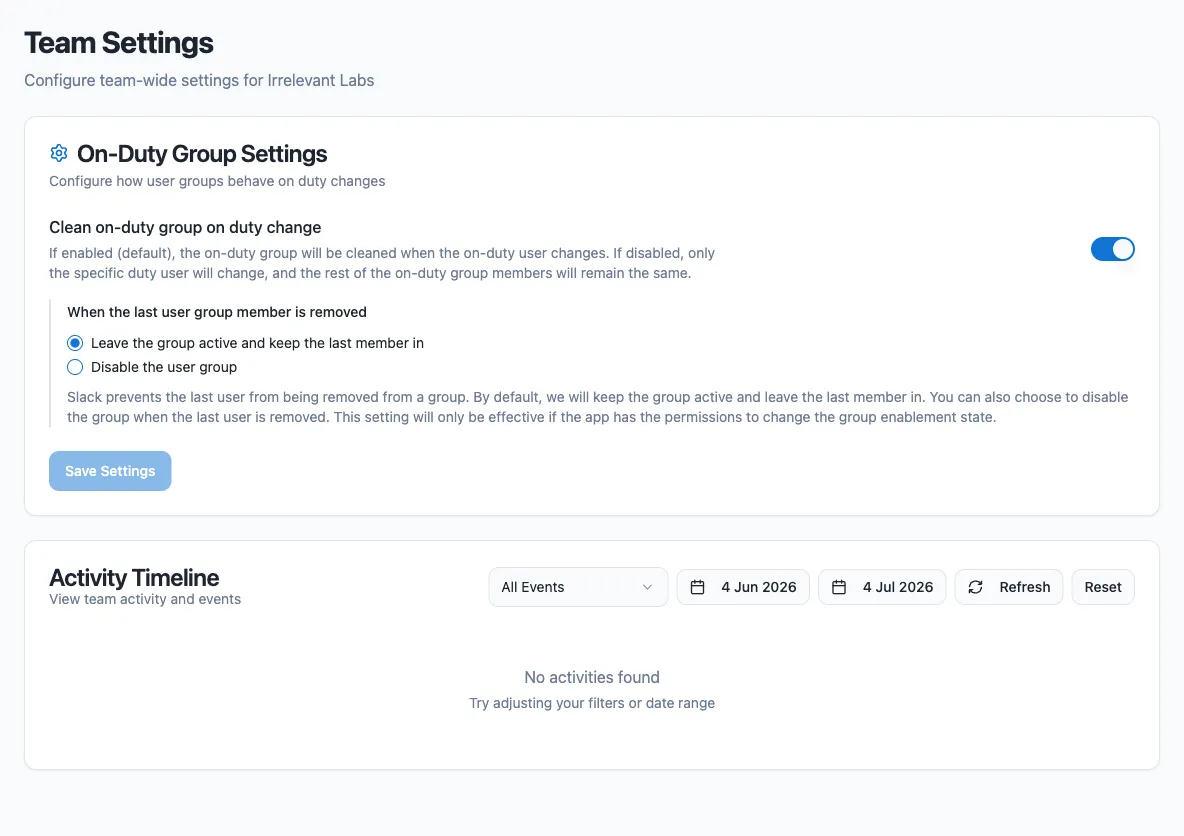
Two team-wide settings control the details, under Settings → Team settings in the dashboard:
| Setting | Behavior |
|---|---|
| Clean on-duty group on duty change (default: on) | The group’s membership is replaced with the new on-duty users. Turn it off to have the bot only add and remove the users going on and off duty, leaving any other members in place. |
| When the last user group member is removed | Slack requires a user group to have at least one member. Choose what happens when everyone goes off duty, for example when every coverage window is shut overnight or the rotation is disabled: see below. |
For the last-member setting:
- Leave the group active and keep the last member in (default): the last on-duty user stays in the group and is removed as soon as someone else goes on duty.
- Disable the user group: the app disables the group and re-enables it when the next user goes on duty. This requires permission to disable user groups.
When the rotation is disabled
Section titled “When the rotation is disabled”The group stays linked to a disabled rotation. Disabling takes everybody off duty, so the group is treated as it is whenever nobody is on duty: it keeps its last member or is disabled, as the When the last user group member is removed setting says. A group that other enabled rotations also use keeps the people on duty in those.
When you enable the rotation again, the group follows it from the next person who goes on duty. There is nothing to reconnect. See Switch a rotation off.
Removing the group
Section titled “Removing the group”Click Unlink in the Who gets notified section on the People & Groups tab. If Round Robin created the group, it is disabled in Slack; if you linked an existing group, syncing stops and the group itself is left untouched.
To point the rotation at a different group, unlink the current one, then click Set up group and choose the new group.
Next steps
Section titled “Next steps”- Sync a channel’s membership: move the people themselves in and out of a channel instead of updating a handle.
- Templating: use
%DUTYHANDLE%in your duty messages and channel topics. - Round Robin in Slack: what the bot does in Slack, and what lives in the dashboard.