Customize rotation messages
Works on the Free plan. Options marked Pro below need a Pro plan.
Round Robin posts a message to your rotation channels, and sends a direct message to the people involved, whenever duty changes. The Message templates card lets you replace any of these messages with your own wording, or switch one off.
You need: edit permission on the rotation, and the rotation enabled. The coverage and Before going messages, and the reminders that send them, need the Pro plan.
Open the Message templates card
Section titled “Open the Message templates card”- Open the dashboard at app.roundrobinbot.eu and select your rotation.
- On the rotation details page, click Settings, then open Messages & Slack.
- Scroll to the Message templates card.
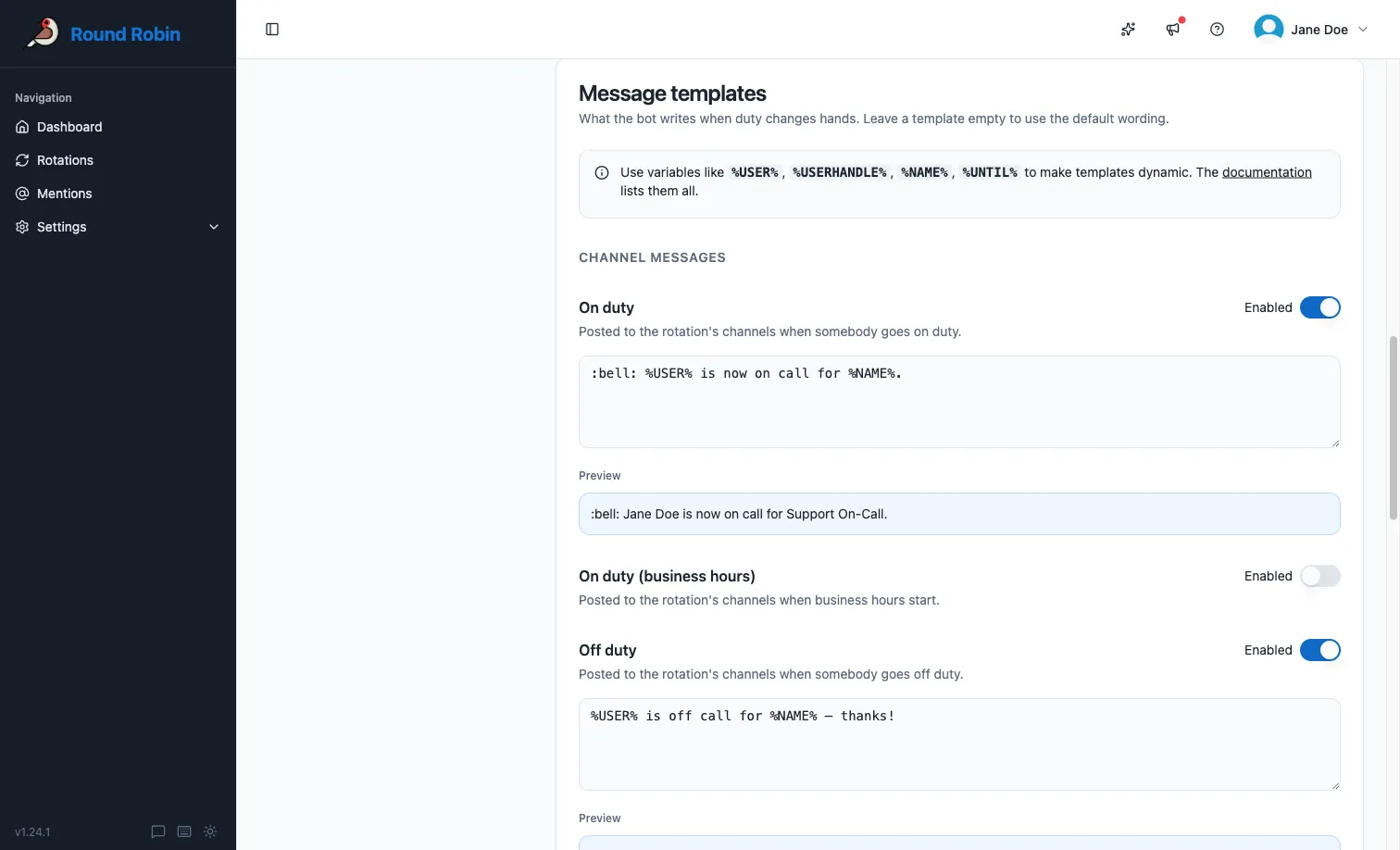
The card shows two groups of messages: Channel messages and Direct messages.
Available messages
Section titled “Available messages”These are the duty messages a template can change. For every message Round Robin sends, who receives it and where, see What Round Robin tells people, and when.
| Group | Message | Plan | Sent when |
|---|---|---|---|
| Channel messages | On duty | All | Somebody goes on duty, including a different person going on duty when a coverage window opens |
| Channel messages | On duty (coverage opens) | Pro | A coverage window opens and the person going on duty is the one who went off duty when it closed |
| Channel messages | Off duty | All | Duty ends and nobody takes over, as when the rotation is disabled |
| Channel messages | Off duty (coverage closes) | Pro | A coverage window closes and has an opening ahead |
| Direct messages | Before going on duty | Pro | Ahead of a shift, privately to the person about to go on duty |
| Direct messages | On duty | All | Privately to the person going on duty |
| Direct messages | Before going off duty | Pro | Ahead of a shift ending, privately to the person about to go off duty |
| Direct messages | Off duty | All | Privately to the person going off duty |
At an ordinary handover the channel gets only On duty. When a window closes, the person whose duty pauses gets a direct message saying when it starts again: a custom Off duty direct message does not replace its wording, and an enabled, empty one stops it.
The two coverage messages are sent only on a rotation whose windows state hours. A window covering the whole week never opens or closes. The two Before going messages are sent only when the matching reminder is switched on: see Remind people before a shift.
Which on-duty message the channel gets when a window opens
Section titled “Which on-duty message the channel gets when a window opens”On duty (coverage opens) means the same person is back. They went off duty when the window closed, and they are going on duty again now that it has opened.
Anybody else going on duty at an opening gets the ordinary On duty message, because the channel is hearing about a new person:
- The seat was empty, and somebody is dealt to it as the window opens.
- The person who held the seat was removed from the list, or is away, so somebody else takes it.
- The seat changed hands while the window was shut. A handover that falls due while a window is shut happens without a message, and the channel hears about it when the window opens.
This decides which template, which Enabled switch and which silencing apply. A custom or silenced On duty (coverage opens) never touches a change of person, and neither does Stay quiet when the same person carries on (see Two switches that go with covered hours). With both templates switched off, the two messages read the same.
Remind people before a shift
Section titled “Remind people before a shift”The Before going messages are reminders, sent a set time ahead of a handover. You switch them on in the Duty notification card.
- On the rotation, click Settings, then open Alerts & mentions.
- In the Duty notification card, turn on Notify users before shift starts, Notify users before shift ends, or both.
- Under each switch you turned on, set Notify before to a number of Minutes, Hours or Days.
- If the rotation’s windows state hours, decide whether people are also reminded when cover opens and closes, not only at a handover: Also notify users before their duty starts when a coverage window opens and Also notify users before their duty ends when a coverage window closes.
- Check Upcoming shift start notifications and Upcoming shift end notifications, which list who is reminded and when, then press Save.
The start reminder goes to the people about to go on duty, and the end reminder to the people about to go off duty. Before a window opens, that is the person coming back to it. Each reminder is sent once per handover, or once per opening or closing.
On a rotation with more than one window
Section titled “On a rotation with more than one window”Every window sends its own reminders. The start reminder goes to the person that window hands over to next, ahead of that window’s own handover. Ahead of an opening, when the coverage option is on, it goes to whoever comes back when the window opens: the same person who was on duty when it shut. The end reminder goes to the people on duty in that window. A window that hands over at 16:00 reminds ahead of 16:00, whatever the other windows do. The reminder’s tokens, including %UNTIL% and %TIMEZONE%, are read for that window: see Which window’s clock a message uses.
The switches and the Notify before time apply to every window of the rotation. Who gets each reminder is listed under Reminders.
When a reminder does not arrive
Section titled “When a reminder does not arrive”| What you see | Why, and what to do |
|---|---|
| No start reminder on a window that hands over by hand | A window with the Manual schedule type has no handover time to remind of. With the coverage option on, it still reminds before it opens. |
| No start reminder on a rotation with Random order on | The next person is drawn at the handover, so nobody can be reminded ahead of it. |
| No opening or closing reminder | The window covers All the time, so it never opens or closes. Give it hours, or rely on the handover reminder. |
| A reminder stopped arriving after you edited its template | The template is enabled and empty, which silences it. Write some text, or turn its Enabled switch off to get the default message back. |
Enable and edit a template
Section titled “Enable and edit a template”- Turn on the Enabled switch next to the message you want to customize.
- Type your template in the text box. Use replacement tokens such as
%USER%,%USERHANDLE%,%NAME%, and%UNTIL%to insert dynamic content. - Check the result in the blue Preview box below the text box. It updates automatically as you type, using your rotation’s real data.
- Click Save.
How the Enabled switch works
Section titled “How the Enabled switch works”Every message, channel or direct, follows the same rules:
| Switch | Template text | Result |
|---|---|---|
| Off | Anything | Round Robin sends its default message. Your template text is kept for later. |
| On | Filled in | Round Robin sends your custom message. |
| On | Empty | That message is not sent at all. |
This gives you two useful moves:
- Pause a customization without losing it: turn the switch off. The default message comes back, and your template is still there when you re-enable it.
- Silence a message entirely: turn the switch on and leave the template empty. For example, you can silence the channel Off duty message and keep the On duty announcement.
The Before going reminders follow the same rules. To stop a reminder without touching its template, turn off Notify users before shift starts or Notify users before shift ends in the Duty notification card.
Next steps
Section titled “Next steps”- Templating tokens: every token you can put in a message.
- Topic management: the same idea for channel topics.
- When a window opens and shuts: where the coverage messages and the opening reminders come from.