Create a rotation
Works on the Free plan. Options marked Pro below need a Pro plan.
A rotation is a pool of people who take turns being on duty. Create it in the dashboard, then choose its members, channels and schedule.
You need: a Round Robin account with room for another rotation under your workspace’s limits.
Create a rotation from the dashboard
Section titled “Create a rotation from the dashboard”-
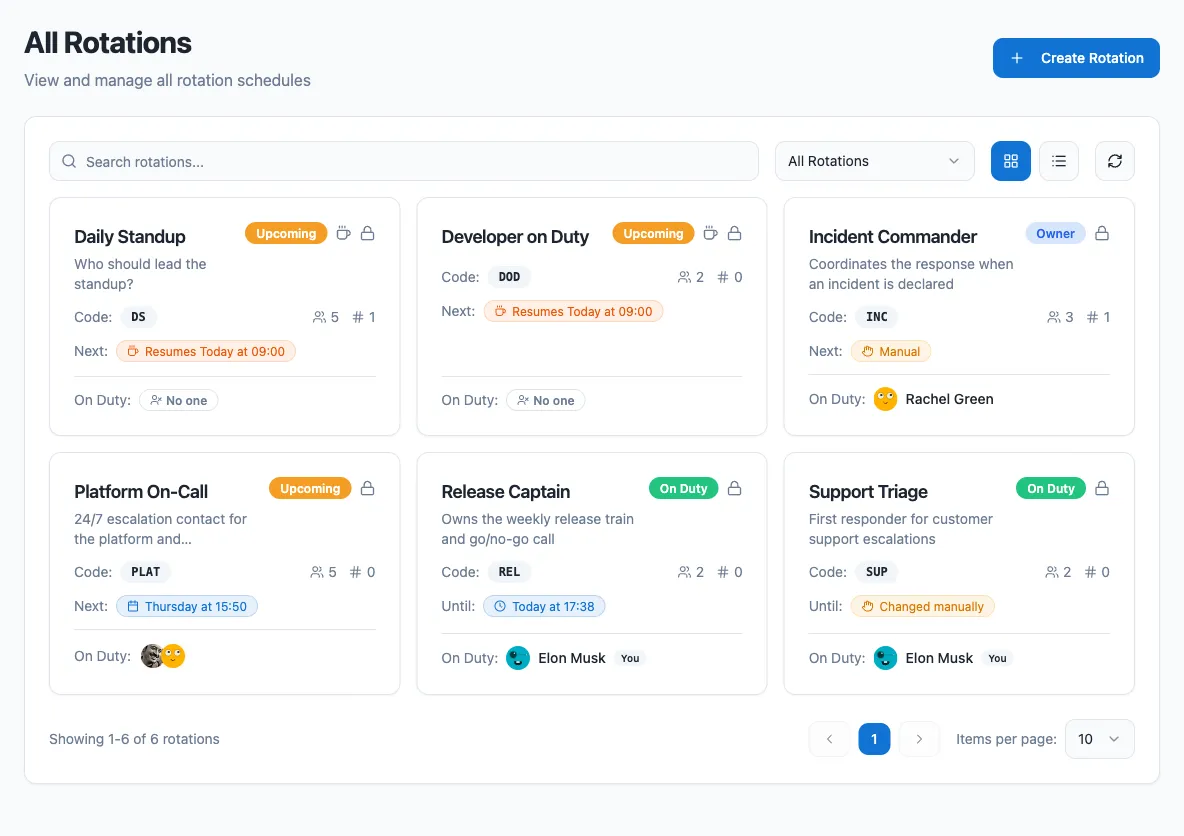
Sign in at app.roundrobinbot.eu and open Rotations. This page lists all rotations you can see, with search and filters.
-
Click Create Rotation.
-
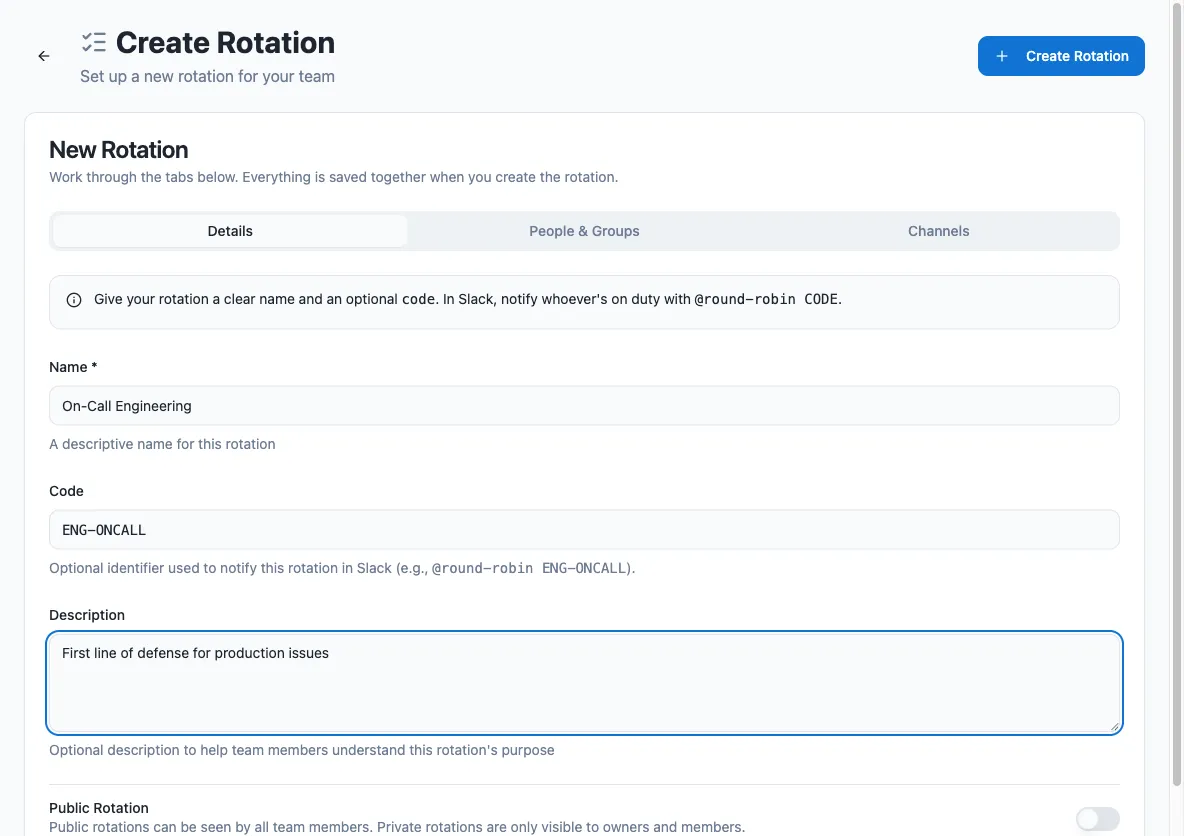
Work through the three tabs: Details (name, code, description, public/private), People & Groups (owners, members, member user groups), and Channels. Everything is saved together.
-
Click Create. You land on the new rotation’s page, where you can continue with schedules, templates, and integrations.
Before saving:
- The Code field accepts only letters, numbers, and hyphens, and is stored uppercase.
- You are pre-filled as an owner and cannot remove yourself.
- You can leave members, groups, and channels empty and configure them later from the rotation page.
Rotation fields
Section titled “Rotation fields”| Field | Required | Plan | What it does |
|---|---|---|---|
| Name | Yes | All | Identifies the rotation everywhere. |
| Description | No | All | Helps members understand what the rotation is for. |
| Code | No | All | A short, memorable identifier (no spaces) other users can use to notify whoever is on duty by mentioning the bot, e.g. @Round Robin ENG-ONCALL. See Mentions. |
| Owners | Yes | Pro | Owners manage the rotation and are the only ones who can edit it. Being an owner does not make you a member. You must always be in the owners list yourself, or the form is rejected. On the Free plan the field is hidden and you become the owner automatically. |
| Visibility | No | Pro | Mark the rotation as private to make it visible only to owners and members. Admins and owners can still see every rotation, private ones included: pick Everyone’s rotations on the Rotations page. By default a rotation is public. On the Free plan every rotation is public. |
| Channels | No | All | Channels notified on rotation events, such as a change of duty. The bot cannot post to private channels it is not a member of. A rotation can also keep a channel’s membership equal to whoever is on call (see Sync a channel’s membership). |
| Members | No | All | Users in the on-call pool who take duty turns. |
| Groups | No | All | Slack user groups whose members join the pool. If the group’s membership changes later, the rotation updates automatically: somebody who joins the group joins the end of the turn order, and somebody who leaves it drops out of it. |
The rotation page
Section titled “The rotation page”Open the new rotation to review its current duty and configure its coverage. See The rotation page for its tabs, settings and actions.
Members from other workspaces and organizations
Section titled “Members from other workspaces and organizations”Rotations aren’t limited to full members of your workspace:
- Guests (single- or multi-channel) can be rotation members like anyone else. They are marked (guest) in the pickers. Slack does not let guests mention user groups, so they cannot use an on-duty group handle to reach whoever is on duty. Mentioning the bot with the rotation’s code (
@Round Robin CODE) works for them in channels the bot is in. - Slack Enterprise Grid: the people and user-group pickers search your whole organization, not just the current workspace. Results from another workspace show a badge with that workspace’s name, and cross-workspace members work in rotations like local ones.
- External people (from another organization, connected through a Slack Connect shared channel) can take duty turns, and are marked with an external badge in pickers and member lists. Because Round Robin isn’t installed in their organization, some things can’t work for them: the bot can’t send them direct messages, can’t add them to on-duty user groups, and won’t sync them into channels. Reach them by notifying a shared channel the rotation posts to.
Edit a rotation
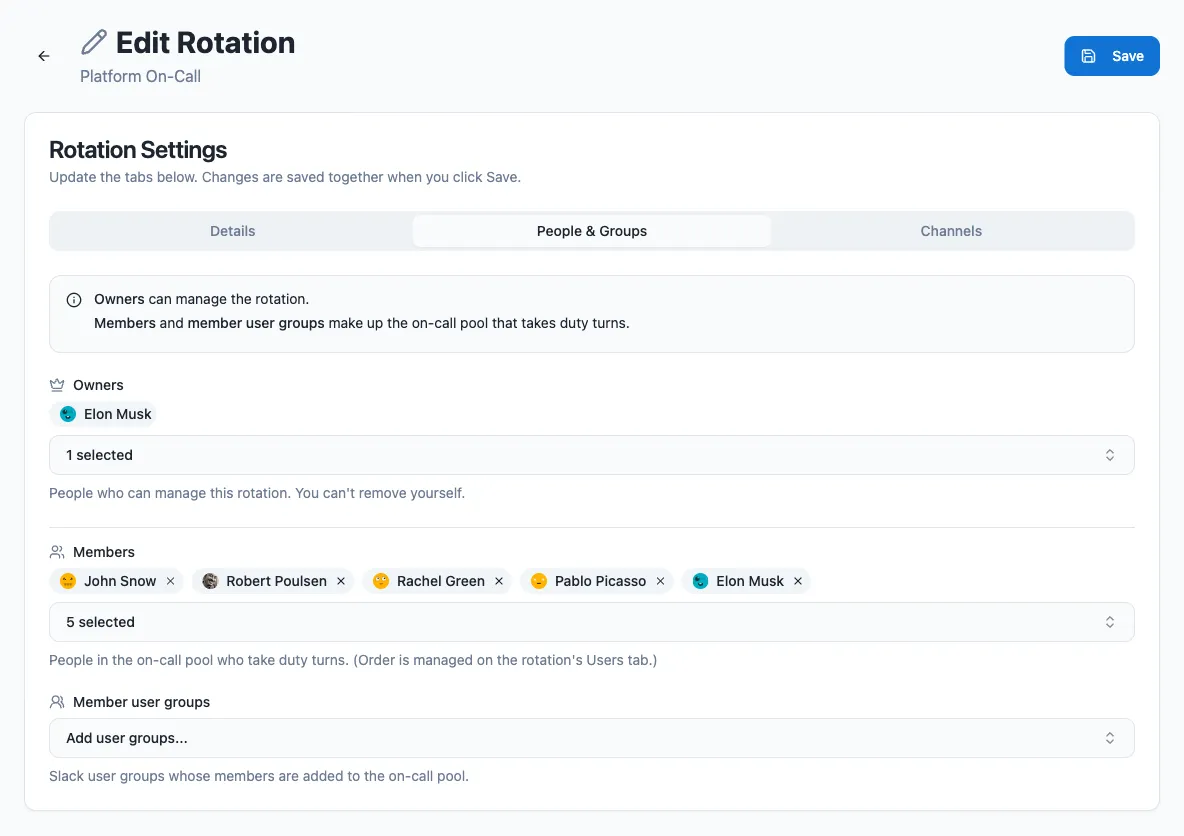
Section titled “Edit a rotation”Open the rotation from the Rotations list and edit it. People & Groups manages owners, members and member user groups.
Channels are not edited here. The rotation’s own Channels tab is where you add a channel, say what Round Robin does in it, and remove it. See Channels.
How many people are on duty at the same time is set on the rotation’s Coverage grid, not here: each lane holds one person, so a rotation with two lanes has two people on call at once. See Lanes.
Switch a rotation off
Section titled “Switch a rotation off”Disable a rotation to stop it without deleting it. Everybody on duty goes off duty, and nobody is on duty again until you enable it.
You need: permission to edit the rotation. Disable rotation, Enable rotation and Delete rotation are in the … menu only for people who can edit it.
- Open the rotation and click … in the page header.
- Choose Disable rotation.
- Confirm with Disable in the Disable rotation? dialog.
Everybody on duty comes off at once, the same way as at any change of duty:
- Each of them gets the Off duty direct message, and the rotation’s channels get the Off duty message. See Customize rotation messages.
- An on-duty group stays linked to the rotation, and is emptied the way it is whenever nobody is on duty. See When the rotation is disabled.
- A channel topic Round Robin keeps changes to say that nobody is on call. See When nobody is on call.
- Their turns end in the rotation’s History at the moment you disabled it.
The rotation keeps its members, lists, coverage, schedule, on-duty group and settings. It also keeps its place in the order, so enabling it picks up with the person after whoever was on duty.
While it is disabled:
- Nobody is on duty. Nothing hands over, and no reminders are sent.
- It says Disabled beside its name, and its page shows the Rotation disabled banner in place of Current duty and Next shift. See A disabled rotation.
- In the Rotations list, On duty reads No one and Next shift names nobody.
- The Plan tab is hidden. The Coverage tab shows nobody on duty.
- Its lanes and coverage windows can still be edited. See Edit coverage while it is disabled.
- Its people, handover note and external schedule cannot be edited.
- It does not count towards your plan’s rotation limit.
Edit coverage while it is disabled
Section titled “Edit coverage while it is disabled”Use the Coverage tab as you would on an enabled rotation: add, change or remove lanes and coverage windows, and set the hours each window covers. See Coverage.
Saving puts nobody on duty. A lane or window you add stays empty, and nobody is messaged about the change. Enable the rotation when the coverage is ready, and it starts on what you saved.
The same edit works through the API, with PUT /v1/rotations/{rotationId}/coverage. See Lanes, windows and cells.
A rotation linked to PagerDuty or Jira Service Management takes its lanes and hours from the provider, disabled or not. See External rotations.
Switch it back on
Section titled “Switch it back on”-
Click Enable on the Rotation disabled banner, or choose Enable rotation in the … menu.
-
Confirm with Enable. The dialog reads:
Enable rotation?
The next person in order goes on duty.
What happens next depends on how the rotation hands over:
| Rotation | After you enable it |
|---|---|
| Automatic, on a schedule | The next person in order goes on duty straight away in each lane, announced like any handover. On a rotation with Random order, that person is picked at random. The schedule counts from now, so no handover from the time it was off is made up. If every coverage window is shut, the person waits for the next opening, as after Rotate now. |
| Rotated by hand | Nobody is on duty. Use Rotate now or Set on duty to put somebody on. |
| Linked to PagerDuty or Jira Service Management | Nobody is on duty until Round Robin next reads the provider’s schedule, within a minute or so. Whoever the provider names then goes on duty. |
In a workspace above its plan’s limits, an enabled rotation comes back with nobody on duty, because nothing hands over until the workspace is within its limits again. See Billing.
When disabling or enabling fails
Section titled “When disabling or enabling fails”| You see | What to do |
|---|---|
| Could not disable the rotation or Could not enable the rotation | Nothing changed. Reload the page and try again. |
| No Disable rotation or Enable rotation in the … menu, and no Enable on the banner | You cannot edit this rotation. Ask one of its owners or a workspace admin. |
Delete a rotation
Section titled “Delete a rotation”Delete rotation is in the … menu only while a rotation is disabled. Confirm with Delete. The dialog names the rotation:
Delete rotation?
name, its settings and its duty history are deleted permanently. This cannot be undone.
Disabled rotations on the Free plan
Section titled “Disabled rotations on the Free plan”On the Free plan, a rotation left disabled for more than 60 days is deleted, along with its duty history. Enabling it before then stops the count, and it starts again from zero the next time the rotation is disabled. On paid plans a disabled rotation is kept for as long as you want it.
When Round Robin is uninstalled
Section titled “When Round Robin is uninstalled”Uninstalling Round Robin from Slack disables every rotation in the workspace. Reinstalling enables again only the rotations the uninstall disabled. See Uninstall and reinstall.
From Slack
Section titled “From Slack”Open the bot’s Home tab and select New rotation to open the dashboard form.
In Slack, you can see who is on call, advance a rotation with Rotate, respond to cover and swap requests, and contact the on-call person. Use the dashboard to change assignments, request cover or propose swaps. See Round Robin in Slack.
You can also create a rotation through an AI assistant connected to the MCP server.
Next steps
Section titled “Next steps”- Create or edit a schedule: rotate duty automatically.
- Customize messages: choose what the bot posts on duty changes.
- The rotation page: the tabs, the duty cards and the … menu.