Templating tokens
Wherever Round Robin lets you write a custom text (duty messages or channel topics, for example), you can insert replacement tokens. Round Robin replaces each token with live rotation data when it sends the message or updates the topic.
Where to write templates
Section titled “Where to write templates”Templates are edited in the web dashboard:
- Open app.roundrobinbot.eu and select your rotation.
- Click Settings and open Messages & Slack: the Message templates card customizes duty messages, the Channel topic card customizes the topic.
- Type your template using the tokens below, check the live preview under the text box, and save.
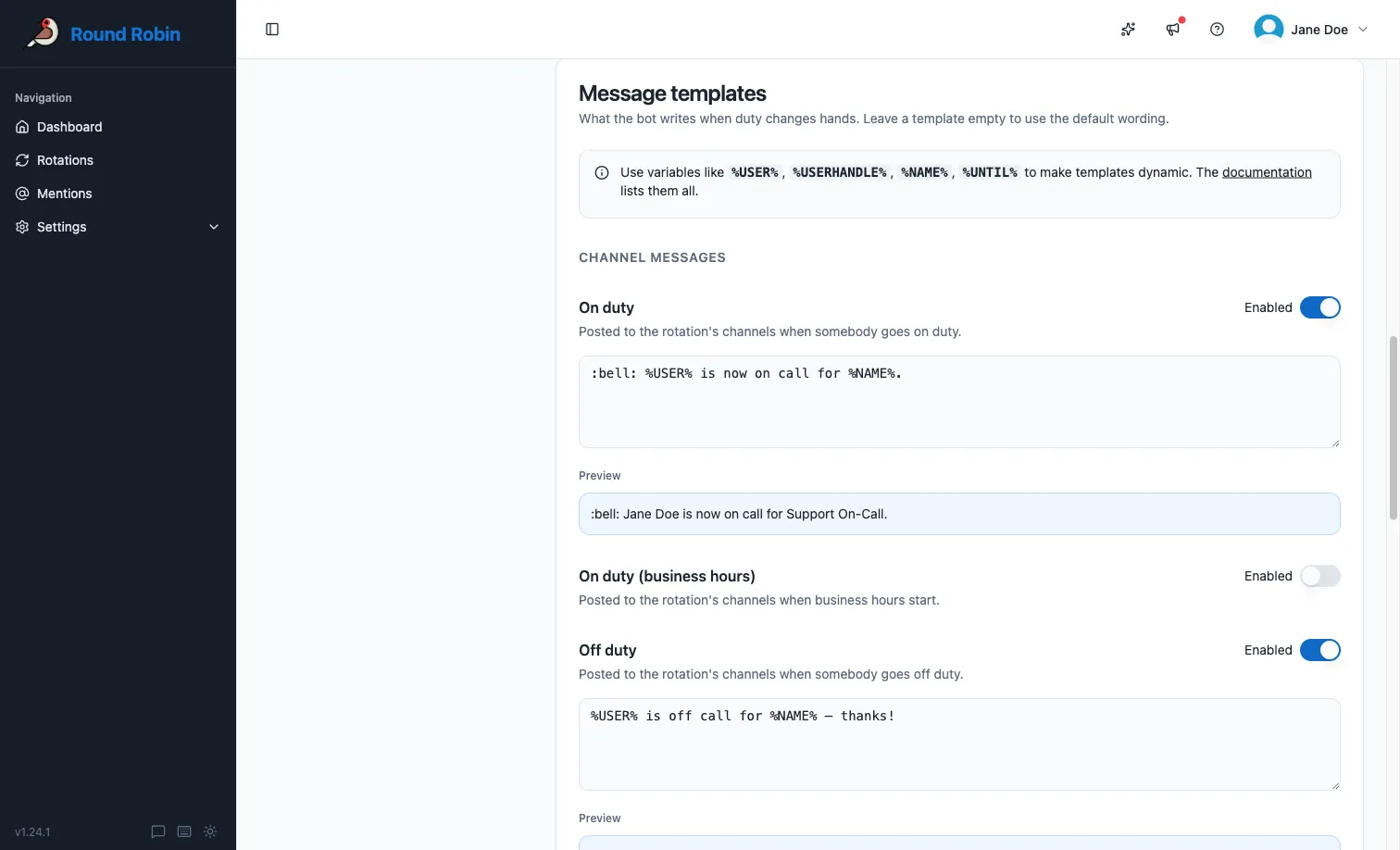
See Message management and Topic management for the full details of each page.
Token rules
Section titled “Token rules”A few rules apply everywhere:
- Where Slack markdown is supported, you can format your text freely. See the Slack formatting guidelines. Slack markdown does not work in channel topics.
- Where Slack markdown is not supported (again: topics), use the
TEXTONLYvariant of a token where available. It renders the handle as plain text instead of a clickable mention. - To write a multiline message, press Return and keep typing. Do not type a literal
\n. - If a token has no value in the current context, Round Robin replaces it with
N/A.
Rotation properties
Section titled “Rotation properties”| Token | Description |
|---|---|
%NAME% |
The rotation name (for example “Standup”). |
%DESCRIPTION% |
The rotation description, if set. |
%DUTY_SIZE% |
The number of people on duty at the same time (usually 1). |
%ROTATION_NOTES% |
The rotation notes. Replaced with empty text if there are no notes. |
Users on duty
Section titled “Users on duty”| Token | Description |
|---|---|
%USER% |
The real name of the user on duty (for example “Robert Redford”). |
%USERHANDLE% |
The handle of the user on duty (for example “@robert”) as a clickable Slack mention. |
%USERHANDLE_TEXTONLY% |
The handle of the user on duty as plain text. |
%USERID% |
The Slack ID of the user on duty. |
Multi-user rotations and numbered tokens
Section titled “Multi-user rotations and numbered tokens”If more than one user is on duty, the tokens above expand to the whole group: %USER% becomes “A and B”.
To target a single user, append their position (1-based) to the token name. For example, with users A and B on duty, %USER1% produces “A”. If the position exceeds the number of users on duty, the token produces N/A.
Numbered forms work for all the on-duty and next-on-duty user tokens, for example %USERHANDLE1%, %USERID2%, or %NEXT_USERHANDLE_TEXTONLY3%.
Users next on duty
Section titled “Users next on duty”| Token | Description |
|---|---|
%NEXT_USER% |
The real name of the person who goes on duty at the next handover. |
%NEXT_USERHANDLE% |
The handle of the next person on duty as a clickable Slack mention. |
%NEXT_USERHANDLE_TEXTONLY% |
The handle of the next person on duty as plain text. |
%NEXT_USERID% |
The Slack ID of the next person on duty. |
On a rotation with one window, every lane hands over at the same moment, so %NEXT_USER% names everybody going on duty then: “A and B” with two lanes.
On a rotation with more than one window, each seat’s next holder comes from its own window, and the windows hand over at different times:
%NEXT_USER%and the other unnumbered tokens name the people of the earliest handover only. If the EMEA window hands over at 08:00 and the APAC window at 16:00, a message sent in the morning names EMEA’s next person.- Numbered tokens count every seat, earliest start first. Seats that start at the same moment follow window order, then lane order.
%NEXT_USER1%is the first person to go on duty,%NEXT_USER2%the next, and so on. - In a Before going on duty reminder, these tokens name the people that window hands over to, because each window sends its own reminder.
On a rotation with Random order on, the next-on-duty tokens produce N/A, because the next person is drawn at the handover.
Rotation events
Section titled “Rotation events”| Token | Description |
|---|---|
%UNTIL% |
When the current duty ends, in the schedule’s local time (for example “Monday, 24 April 2023 14:00:00”). |
%UNTIL_UTC% |
When the current duty ends, in UTC (for example “Mon, 24 Apr 2023 12:00:00 GMT”). |
%NEXT_UNTIL% |
When the next duty ends, in the schedule’s local time. |
%NEXT_UNTIL_UTC% |
When the next duty ends, in UTC. |
%TIMEZONE% |
The schedule’s time zone identifier (for example “Europe/Amsterdam”; see the tz database list). |
%TZ_OFFSET% |
The schedule’s base offset from UTC, not counting daylight saving time (for example “+01:00” for Europe/Amsterdam). |
Which window’s clock a message uses
Section titled “Which window’s clock a message uses”Each coverage window runs on its own schedule and time zone. On a rotation with more than one window, these tokens read the window the message is about:
| Message | Window it reads |
|---|---|
| A handover that moves people in one window | That window |
| A Before going on duty or Before going off duty reminder | The window sending it |
| A handover that moves people in several windows at once | The rotation’s first window |
| Anything about the rotation as a whole, such as the channel topic | The rotation’s first window |
%TIMEZONE%, %TZ_OFFSET%, and the local times of %UNTIL% and %NEXT_UNTIL% all follow that window. In a message about one window, %UNTIL% is the earliest end among the people on duty in that window. Otherwise it is the earliest end among everybody on duty.
A rotation with one window reads that window for every message.
On-duty group
Section titled “On-duty group”| Token | Description |
|---|---|
%DUTYHANDLE% |
If the rotation uses an on-duty user group, the group’s handle (for example “@standup-operator”) as a clickable Slack mention. |
%DUTYHANDLE_TEXTONLY% |
If the rotation uses an on-duty user group, the group’s handle as plain text. |
Acting user
Section titled “Acting user”These tokens refer to the person performing a manual action, so they only have a value during manual actions. For example, if you (user Y) manually set user X on duty, the ME tokens point to you, not to user X.
| Token | Description |
|---|---|
%ME% |
The real name of the acting user. |
%MY_HANDLE% |
The handle of the acting user as a clickable Slack mention. |
%MY_HANDLE_TEXTONLY% |
The handle of the acting user as plain text. |
%MY_ID% |
The Slack ID of the acting user. |
Next steps
Section titled “Next steps”- Customize rotation messages: where you put these tokens to work.
- Topic management: the same tokens in channel topics.
- Round Robin in Slack: where the replaced tokens end up.