
Integrate Jira Service Management with Round Robin
ProThis feature needs a Pro plan. On Free the settings are visible but locked.
Connecting Jira Service Management lets Round Robin read your on-call schedules, so a rotation can take its people and its hours from Jira. The connection uses an Atlassian API token that belongs to one account.
You need: permission to manage workspace integrations, and an Atlassian account that can see the on-call schedules you want to use.
Create an API token in Atlassian
Section titled “Create an API token in Atlassian”Round Robin reads schedules as the account that owns the token, so it sees exactly what that account sees.
- Open Atlassian account settings and go to Security > API tokens.
- Click Create API token with scopes.
- Name the token and choose the Jira app. The on-call scopes are there; Jira Service Management has no entry of its own.
- Grant the read scopes for on-call schedules, then create the token.
- Copy the token. Atlassian shows it only once.
Connect Round Robin to Jira Service Management
Section titled “Connect Round Robin to Jira Service Management”- Open the Round Robin dashboard and go to Settings > Integrations.
- On the Jira Service Management card, click Connect.
- Fill in the dialog:
- Site: the
acmeofacme.atlassian.net. The full URL works too. - Atlassian account email: the account the token belongs to.
- API token: the token you created.
- Site: the
- Click Connect.
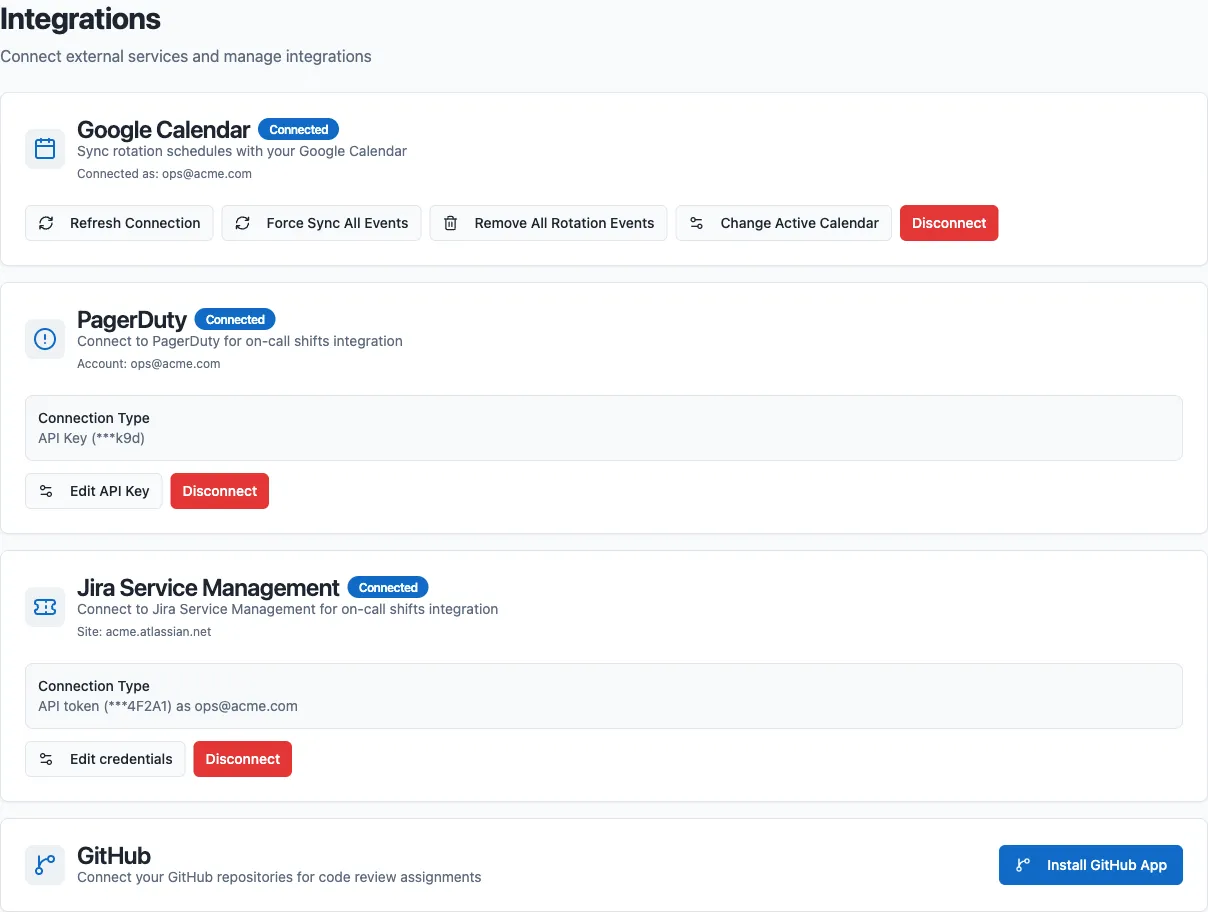
The card shows Connected, and under Connection Type the last digits of the token and the account it acts as. To change the site, account or token without disconnecting, click Edit credentials.
If the connection is refused, the dashboard shows Failed to connect to Jira Service Management. Please check the site, email and API token. Check that the site name is right, that the email is the token owner’s, and that the token has the on-call read scopes.
Once connected, link a rotation to a schedule.
Set the hours a rotation covers
Section titled “Set the hours a rotation covers”A linked rotation is on call whenever its Jira Service Management schedule has somebody on call. The rotation’s Coverage tab says so in a note headed Hours set in Jira Service Management.
To cover only part of the day or week, add restrictions to that schedule in Jira Service Management. Round Robin has no coverage hours of its own for a linked rotation.
Say who each responder is in Slack
Section titled “Say who each responder is in Slack”Jira hides email addresses by default, for every account type. Round Robin matches a schedule’s participants to Slack people by email, so on most Jira sites it matches nobody. A responder it cannot match still goes on duty, but cannot be mentioned in Slack.
Map them by hand, once per person:
- Open the rotation and go to People & Groups.
- For each participant, click Pick person and choose their Slack account.
A mapping you set by hand takes precedence over the email match and stays through every later sync. See Say who a participant is in Slack.
Disconnect Jira Service Management
Section titled “Disconnect Jira Service Management”- Go to Settings > Integrations in the Round Robin dashboard.
- On the Jira Service Management card, click Disconnect and confirm.
To unlink one rotation and keep the connection, see Disconnect a rotation.
Coming from Opsgenie
Section titled “Coming from Opsgenie”Atlassian is closing Opsgenie on 5 April 2027 and moving its customers to Jira Service Management. Round Robin connects to Jira Service Management and not to Opsgenie: connect it as above, then link your rotations to the Jira schedules.
Next steps
Section titled “Next steps”- External rotations: link a rotation to a schedule, and what the provider owns.
- PagerDuty and Jira Service Management rotations: reading assignments, the Plan and history.