
Create or edit a schedule
Works on the Free plan. Options marked Pro below need a Pro plan.
A schedule decides when duty hands over to the next person. Every coverage window has one: either a cadence, where Round Robin hands over on the days and times you set, or Manual, where somebody hands over with Rotate now or a lane’s Rotate. A rotation with more than one window has a schedule per window, and each window hands over on its own.
You need: edit rights on the rotation, and the rotation enabled.
Edit the schedule in the dashboard
Section titled “Edit the schedule in the dashboard”- Open the dashboard, select your rotation, and open its Coverage tab. It draws one band per coverage window, naming the hours it covers and the clock it reads them in.
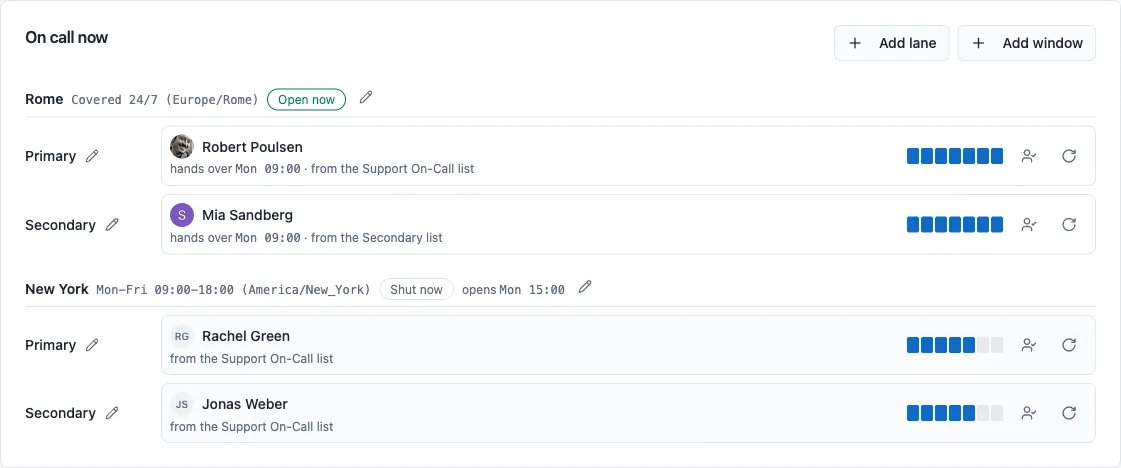
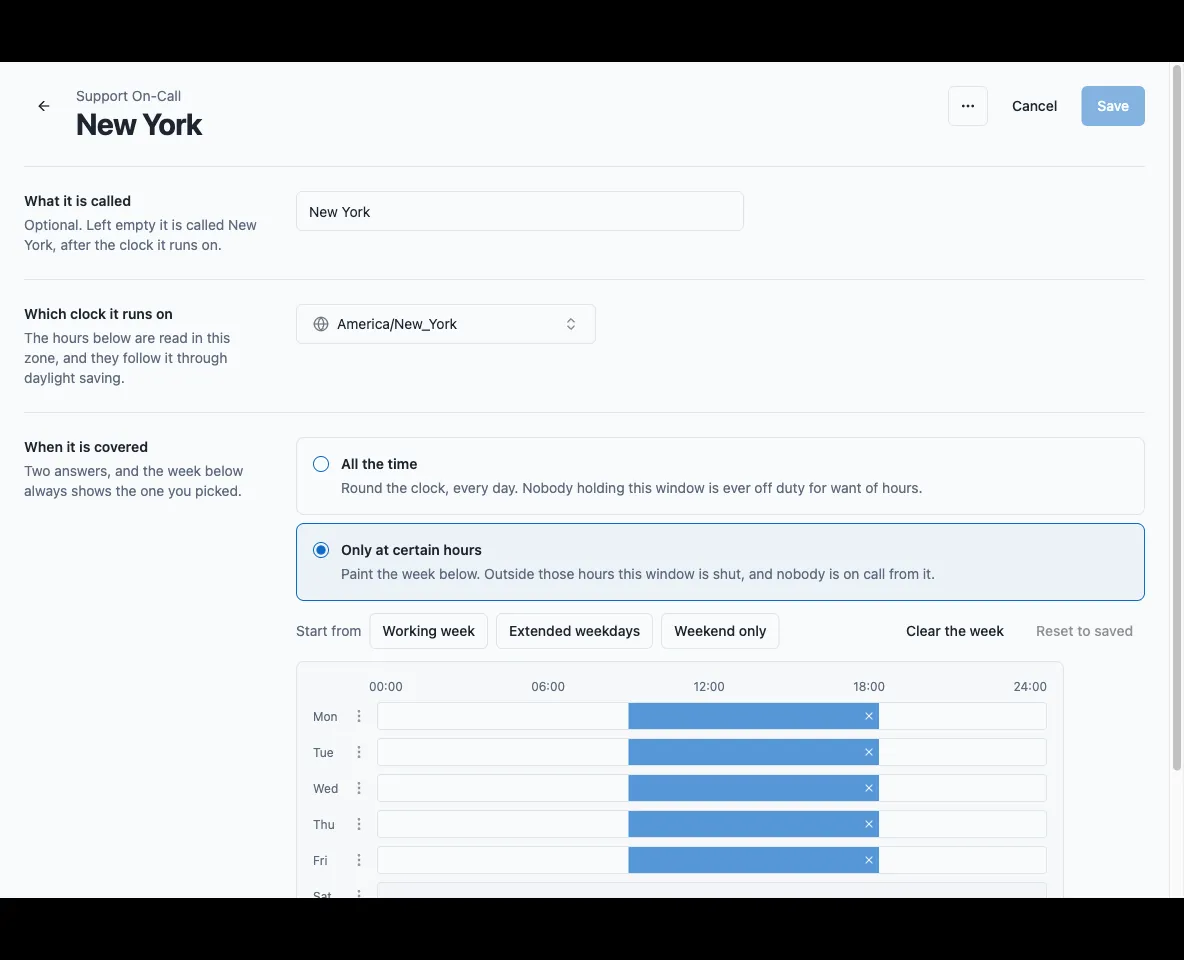
- Press the pencil in the band head to open that coverage window, or Edit on the Hands over card further down the tab, which opens the same page from the cadence it describes. On a rotation with more than one window, Edit names them and you pick the one to open. Its page holds three things: the clock it runs on, the hours it covers, and how often it hands over.
- Under When it hands over, pick a cadence, fill in the starting date and handover time, review the skip options, and press Save. Cancel discards the edits, and leaving the page any other way asks first.
To hand a window over by hand, select the Manual schedule type and save. Whoever is on duty in a manual window stays on duty until somebody hands over, with no end time.
Schedule types
Section titled “Schedule types”| Type | Rotates | Example |
|---|---|---|
| Daily | One or more times per day, at fixed time slots, every period days |
Every day at 08:00 and 20:00; every second day at 09:00 |
| Working Days | Every period working days, based on the selected countries |
Every two working days |
| Weekly | The same weekday, every period weeks |
Every Monday; every second Monday |
| Monthly | The same day of the month, every period months |
The 10th of every month; the 10th of every second month |
| Nth Weekday | The chosen occurrence(s) of a weekday, every period months |
The second Monday of the month |
| Custom Days | Each selected weekday, every week | Monday, Wednesday, and Friday |
Period
Section titled “Period”Where a schedule type supports a period, it controls the gap between rotations. A period of 1 rotates every time the schedule comes round, 2 skips one, and so on.
- Daily: the period counts days. A period of 2 rotates every second day, through the same time slots.
- Working Days: 2 means every two working days, 3 every three, and so on.
- Weekly: a period of 1 means every week, 2 means every two weeks, and so on.
- Monthly: the period counts months. A period of 2 with the 10th rotates on the 10th of every second month.
- Nth Weekday: the period counts months. A period of 2 with “first Monday” rotates on the first Monday every two months.
Custom Days rotates on each selected weekday every week, and has no period.
Each type sets its own limit: 365 for daily and working days, 52 for weekly, and 12 for monthly and Nth weekday.
Choosing the day
Section titled “Choosing the day”Weekly and monthly schedules rotate on a day you pick with Rotate On: a weekday for weekly, a day of the month for monthly. Because a schedule is anchored to its starting date, picking a day moves that date to the next one that matches: choose Every Friday on a Wednesday and the starting date jumps to the coming Friday, choose the 31st and it jumps to the next month that has one. You can also set the starting date directly and let the day follow from it.
Daily schedules
Section titled “Daily schedules”The daily type is designed for shifts that change one or more times per day, for example 24/7 support handovers. Time slots use HH:mm (24-hour) or H:mm AM/PM; if you omit the minutes, :00 is assumed.
Time zone
Section titled “Time zone”Every window runs in a time zone you pick on its page (in IANA format, for example Europe/Berlin), independent of your own Slack time zone. It defaults to your Slack time zone. The picker is searchable: type a few letters of the city or region, and your own time zone is suggested first.
Once set, a handover time of 10:00 means 10:00 in that time zone, not in your local time. On a rotation with more than one window, each window hands over and skips days in its own zone, and a message about one window shows that window’s zone in %TIMEZONE%. See Which window’s clock a message uses.
The list is a city per entry (Europe/Berlin, America/New_York, Asia/Kolkata), plus UTC. A city follows daylight saving: Berlin knows when it springs forward, and a handover set to 10:00 stays at 10:00 through the change. Fixed offsets such as Etc/GMT+2 are not on the list, and sending one over the API or an assistant is refused. An old name or an abbreviation (US/Eastern, EST, Asia/Calcutta) is accepted and stored as the city it means (America/New_York, Asia/Kolkata).
Skipping weekends and holidays
Section titled “Skipping weekends and holidays”Every schedule type can skip non-working days based on one or more countries:
- Working Days schedules require at least one country, because that is how Round Robin knows which days count as working days.
- All other types offer two optional checkboxes under Skip Options: Skip Weekends and Skip National Holidays. For either to take effect, select at least one country.
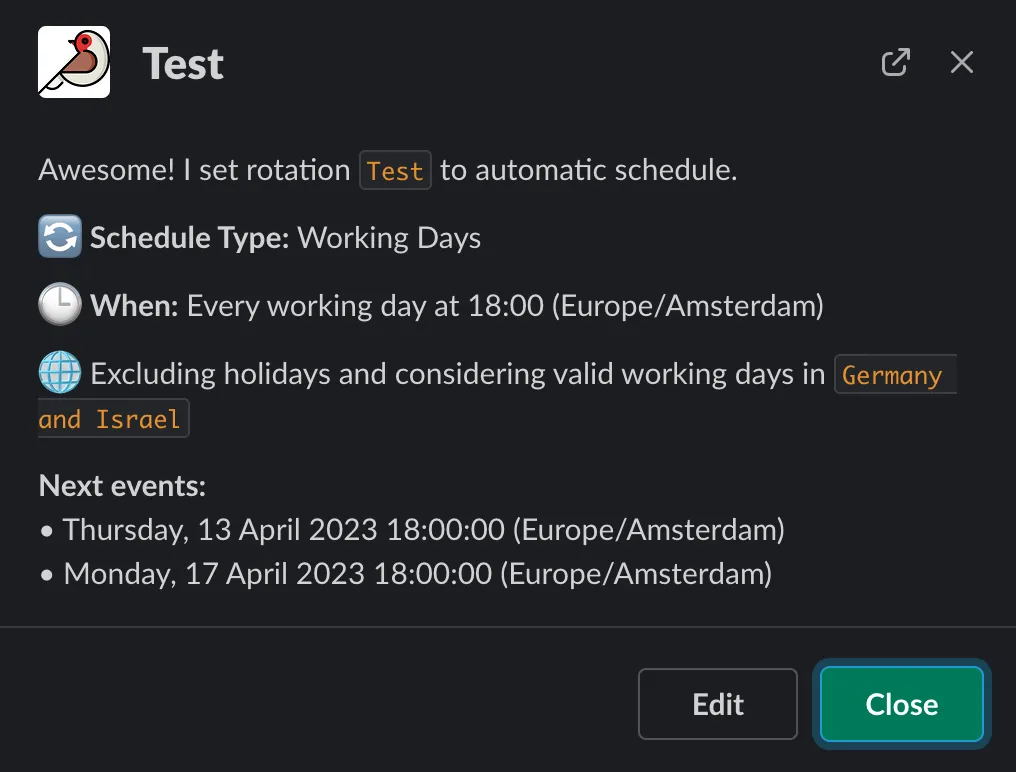
You can select multiple countries, and their effects combine. For example, a working-day rotation for Germany and Israel skips Friday and Saturday (the Israeli weekend) as well as Saturday and Sunday (the German weekend):
Public holidays work the same way: a rotation scheduled over the Easter break with Germany selected skips both Good Friday and Easter Monday.
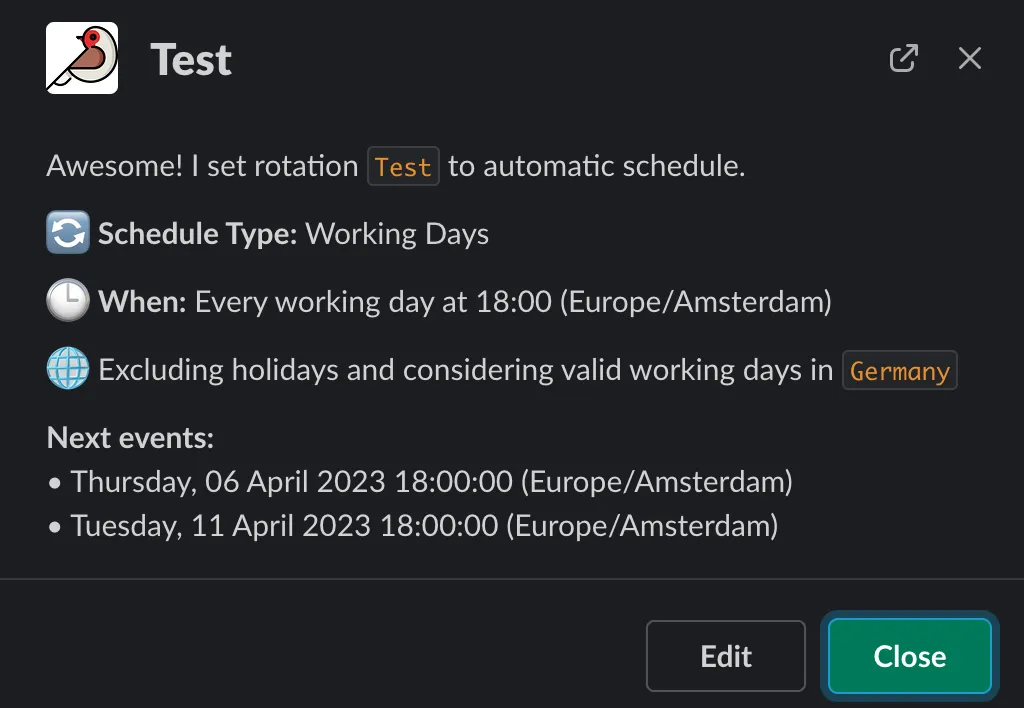
The schedule does not hand over on a skipped day. Whether that day also leaves nobody on duty is a separate switch, Skipped days count as time off duty: see Two switches that go with covered hours.
Skip settings belong to a window. On a rotation with more than one window, each window skips the days its own schedule skips, and one window’s weekends and holidays have no effect on another’s.
When it is covered
Section titled “When it is covered”The same window page carries When it is covered, which is a separate question from how often duty changes hands. A window is either covered All the time, round the clock, or Only at certain hours, where you paint the week and the window is shut outside it. While a window is shut nobody is on call from it, even mid-shift, and a manual window is bound by its hours in the same way as one on a cadence.
A handover that falls due while a window is shut still happens, without a message. The next person takes the seat and goes on duty when the window opens, and the channel gets the ordinary On duty message then. See When a window opens and shuts.
The hours are read in the clock the window runs on, the same one its cadence fires on. Every window keeps its own hours, so a rotation with an EMEA window and an APAC window has two covered weeks, not one. See Setting the hours.
From Slack
Section titled “From Slack”Schedules are configured in the web dashboard, where every schedule type and option is available. From Slack you can jump there quickly: open the bot’s App Home (or the rotation’s card) and choose Open in dashboard. If you use an AI assistant connected to the MCP server, you can also set common schedules conversationally, for example “schedule PAYMENTS weekly on Mondays at 9am Europe/Rome.”
Next steps
Section titled “Next steps”- The rotation page: the coverage windows a rotation is made of, and the hours each of them covers.
- Out-of-office and availability: skip people who are away when duty changes hands.
- Round Robin in Slack: cards, the flexpane, the App Home and commands.